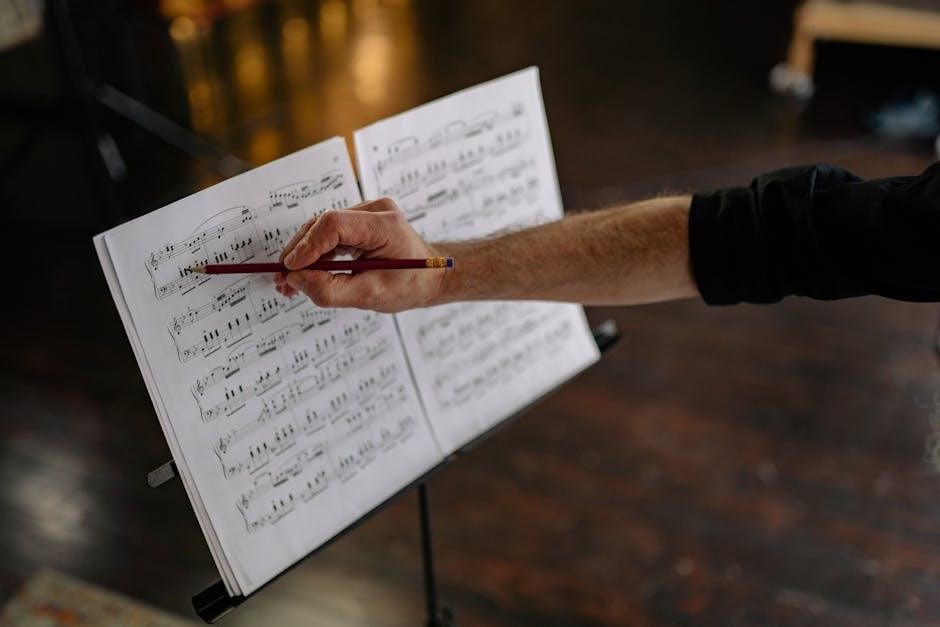
Transforming static PDF sheet music into editable MIDI format unlocks creative possibilities, enabling playback, modification, and integration with modern music production tools.
What is MIDI and Why Convert?
MIDI (Musical Instrument Digital Interface) is a protocol, not an audio recording. It transmits data about musical notes – pitch, velocity, timing – allowing software synthesizers to create the sound. Converting PDF sheet music to MIDI isn’t about extracting audio; it’s about recreating the musical information.
Why convert? Primarily, it allows for editing and manipulation. Unlike a scanned image, MIDI data is flexible. You can change instruments, tempos, keys, and even individual notes easily. It also facilitates playback using various virtual instruments, offering a different listening experience. Furthermore, MIDI files are compact and easily shared, and integrate seamlessly with Digital Audio Workstations (DAWs) for further production.
The Challenges of PDF to MIDI Conversion
Converting PDF sheet music to MIDI isn’t always straightforward. The process relies on accurately interpreting visual notation, which presents several hurdles. Image quality is crucial; low-resolution scans or poor contrast can hinder recognition. Complex layouts – multiple instruments on a staff, dense chords, or intricate rhythms – increase the difficulty.
Handwritten notation poses a significant challenge, as variations in handwriting are difficult for software to interpret consistently. Even with cleanly printed music, ornaments, articulations, and dynamics can be misinterpreted. Finally, accurate key and time signature detection are vital; errors here will affect the entire conversion, requiring manual correction.
Methods for Converting PDF Sheet Music to MIDI
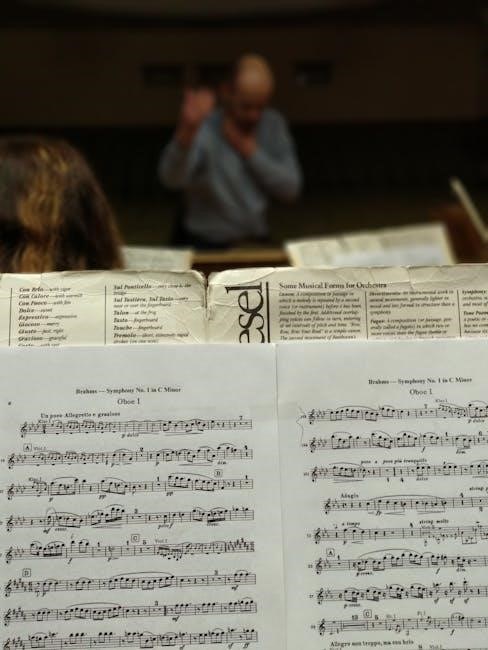
Several approaches exist, ranging from dedicated software and convenient online tools to leveraging Optical Music Recognition (OMR) technology for accurate results.
Using Dedicated Software (e.g., SmartScore X2)
Dedicated software, like SmartScore X2, represents a powerful solution for converting PDF sheet music to MIDI. These programs are specifically designed to interpret musical notation, offering a higher degree of accuracy compared to general-purpose tools. They employ sophisticated algorithms to recognize notes, rhythms, and other musical symbols.
The key advantage lies in their ability to handle complex scores with multiple instruments and intricate arrangements. Users typically import the PDF file, and the software then analyzes the image, attempting to identify each musical element. Post-conversion editing features allow for correcting any recognition errors, ensuring a clean and accurate MIDI representation of the original score. This method often provides the most control and best results, albeit at a cost.
Online Conversion Tools (Pros & Cons)
Numerous online tools claim to convert PDF sheet music to MIDI, offering convenience and accessibility. Pros include their ease of use – typically requiring only an upload and download – and often, a free or low-cost option. This makes them attractive for occasional users or quick conversions.
However, cons are significant. Accuracy is often lower than dedicated software, particularly with complex scores or poor-quality PDFs. Privacy concerns arise as you’re uploading your music to a third-party server. Limited editing capabilities mean correcting errors can be difficult or impossible. Furthermore, file size restrictions and conversion limits are common, hindering large-scale projects. Consider these drawbacks before relying on online converters.
Optical Music Recognition (OMR) Technology Explained
Optical Music Recognition (OMR) is the core technology behind converting scanned sheet music into a digital, editable format like MIDI. Essentially, OMR software analyzes the image of the music, identifying musical symbols – notes, rests, clefs, time signatures, and more – using pattern recognition algorithms.
The process involves image processing to clean up the scan, followed by symbol detection and interpretation. Sophisticated OMR engines employ machine learning to improve accuracy, recognizing variations in notation styles. However, challenges remain with handwritten music, complex layouts, and low-resolution scans, impacting the reliability of the conversion.

Detailed Breakdown of Software Options
Several software packages cater to PDF-to-MIDI conversion, each offering unique features, accuracy levels, and price points for musicians and composers.
SmartScore X2: Features and Workflow
SmartScore X2 stands out as a powerful, dedicated solution for converting scanned sheet music and PDFs into editable formats, including MIDI. Its core strength lies in its advanced Optical Music Recognition (OMR) engine, capable of handling complex layouts and a wide range of musical symbols with impressive accuracy.
Key features include automatic stem and beam grouping, intelligent chord recognition, and support for various musical fonts. The workflow typically involves importing the PDF, a cleanup phase to correct any scanning errors, defining musical parameters like key and time signature, and finally, exporting the recognized music as a MIDI file.
It offers extensive editing tools for refining the score before export, making it a comprehensive choice for professionals.
PhotoScore & Noteflight: A Combined Approach
Combining Neuratron’s PhotoScore with Noteflight provides a streamlined workflow for converting and refining sheet music. PhotoScore excels at accurately recognizing musical notation from scanned PDFs, offering robust error correction tools. However, its editing capabilities are limited.
This is where Noteflight, a cloud-based music notation software, comes in. PhotoScore can directly import recognized notation into Noteflight, allowing for extensive editing, arrangement, and playback control within a user-friendly interface.
This synergy is particularly beneficial for collaborative projects, as Noteflight’s cloud functionality enables real-time sharing and editing. It’s a cost-effective solution for those needing both accurate conversion and powerful notation tools.
MuseScore with Scan Plugin: A Free Alternative
For musicians seeking a budget-friendly option, MuseScore, a free and open-source notation software, coupled with its Scan plugin, offers a viable path to PDF-to-MIDI conversion. The Scan plugin utilizes Optical Music Recognition (OMR) to interpret sheet music images.
While not as polished as dedicated commercial software, MuseScore’s Scan plugin delivers surprisingly accurate results, especially with clean, high-resolution scans. Users can then refine the recognized notation directly within MuseScore’s comprehensive editing environment.
This approach requires more manual correction than paid alternatives, but provides a powerful, free solution for converting and manipulating sheet music into MIDI format, making it ideal for hobbyists and students.
Step-by-Step Guide: SmartScore X2 Conversion
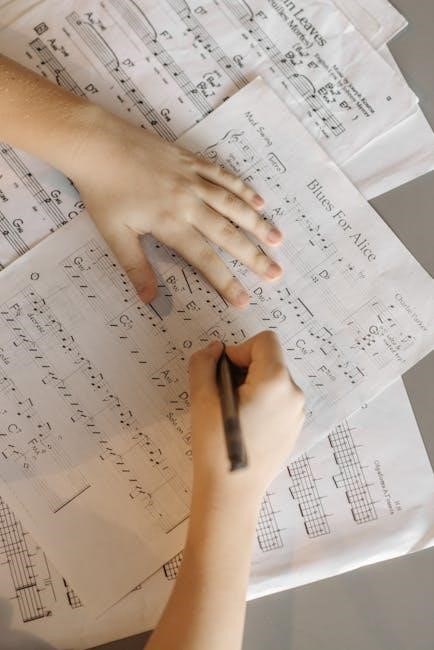
Follow these detailed instructions to efficiently convert your PDF sheet music into a usable MIDI file using the powerful features of SmartScore X2.
Importing the PDF File
Begin the conversion process by launching SmartScore X2. From the “File” menu, select “Open” and navigate to the location of your PDF sheet music file. Ensure the PDF is clearly scanned or digitally created for optimal results. SmartScore X2 supports a wide range of PDF versions and complexities.
Once selected, the software will display a preview of the PDF. You can zoom in to inspect the quality of the scan. Before proceeding, verify that the page orientation is correct. If necessary, use the rotation options within SmartScore X2 to adjust it. Click “Open” to import the PDF into the program, initiating the initial analysis phase.
The software will then prepare the document for music recognition, a crucial first step in the conversion workflow.
Cleaning Up the Scan (Removing Noise & Errors)
After importing, SmartScore X2 often identifies imperfections in the scan, such as stray marks, smudges, or incomplete notes. Utilize the “Clean Up” tools to address these issues. The “Noise Removal” feature effectively eliminates unwanted artifacts, improving recognition accuracy. Carefully examine the score for any remaining blemishes and manually remove them using the eraser tool.
Pay close attention to broken or connected notes; use the split and join tools to correct these errors. Ensure that stems, beams, and flags are accurately represented. Correct any misidentified ledger lines or clef symbols. A meticulous cleanup phase significantly enhances the quality of the final MIDI output.
Defining Musical Elements (Key, Time Signature, etc.)
Accurate musical interpretation relies on correctly defining fundamental elements. SmartScore X2 may automatically detect the key and time signature, but always verify these settings. Manually adjust them if necessary, using the program’s dedicated tools. Confirm the tempo marking; incorrect tempo will affect playback speed.
Specify any key changes or time signature alterations throughout the piece. Define the beaming style to match the original score’s notation. Ensure that repeat signs, codas, and other structural markings are properly recognized. Precise definition of these elements ensures the MIDI file accurately reflects the composer’s intent.
Exporting as a MIDI File
Once satisfied with the musical element definitions and error corrections, export the score as a MIDI file. SmartScore X2 offers various MIDI export options, including different file formats (SMF, etc.) and MIDI channels. Select the appropriate settings based on your intended use and the requirements of your Digital Audio Workstation (DAW).
Consider exporting multiple tracks for different instruments, enhancing editing flexibility. Review the export settings to ensure compatibility with your software. A standard MIDI file (.mid) is generally the most versatile option. Finally, test the exported MIDI file in a DAW to confirm accurate playback and functionality.

Optimizing MIDI Output for Playback
Refining the MIDI output through soundfont selection and dynamic adjustments dramatically improves the realism and musicality of the converted sheet music.
Choosing the Right Soundfont
Soundfonts are crucial for determining the sonic character of your MIDI playback. They contain sampled instrument sounds, ranging from realistic orchestral instruments to synthesized tones. Selecting a soundfont appropriate for the sheet music’s instrumentation is paramount. A piano piece benefits from a high-quality piano soundfont, while orchestral scores demand a comprehensive orchestral library.
Consider the genre and desired aesthetic. Vintage soundfonts can evoke a retro feel, while modern libraries offer pristine clarity. Experimentation is key! Many free and commercial soundfonts are available online. Pay attention to the soundfont’s polyphony (the number of notes it can play simultaneously) to avoid dropped notes in complex passages. Higher polyphony generally equates to better performance.
Adjusting Velocity and Dynamics
MIDI files often lack the nuanced dynamics present in a live performance. Velocity, representing how hard a key is struck, controls volume and timbre. Adjusting velocity values within your DAW breathes life into the MIDI conversion. Manually editing velocity curves can mimic crescendo and diminuendo markings.
Dynamic markings (p, mf, f) from the original sheet music aren’t always perfectly translated. Use your DAW’s automation features to further refine the dynamics, creating a more expressive and musical performance. Subtle variations in velocity make a significant difference, avoiding a robotic sound. Listen critically and adjust until the playback feels natural and engaging.
Quantization and Timing Correction
PDF to MIDI conversion isn’t always rhythmically perfect; slight inaccuracies are common. Quantization snaps notes to the nearest grid division, correcting timing errors. However, excessive quantization can sound sterile and unnatural. Experiment with different quantization strengths – a subtle setting often preserves some of the original feel.
For more nuanced control, manually adjust individual notes’ timing. Your DAW allows precise positioning on the timeline. Consider the musical style; looser timing might be appropriate for jazz, while tighter timing suits classical pieces. Careful timing adjustments enhance the musicality of the converted MIDI file, resolving imperfections.

Troubleshooting Common Conversion Issues
Despite advancements, PDF to MIDI conversion often presents challenges; addressing these requires patience and understanding of potential errors in note and rhythm recognition.
Dealing with Complex Rhythms
Complex rhythmic patterns – tuplets, irregular time signatures, and syncopation – frequently pose significant hurdles during PDF to MIDI conversion. Optical Music Recognition (OMR) software can struggle to accurately interpret these nuances, often simplifying them or introducing errors. Manually reviewing and correcting these sections is almost always necessary; Pay close attention to beamed notes and rests, ensuring they are correctly grouped and aligned with the intended rhythmic structure.
Utilize the software’s editing tools to adjust note durations and positions precisely. Zooming in on the score can aid in visual verification. Consider breaking down complex rhythms into simpler components for easier recognition, then reassembling them within the MIDI editor. Experiment with different conversion settings, as some algorithms handle specific rhythmic complexities better than others.
Handling Handwritten Notation
Handwritten sheet music presents a unique challenge for PDF to MIDI conversion due to its inherent variability and potential for ambiguity. OMR software is generally less accurate with handwritten scores compared to cleanly printed ones. Legibility is paramount; faint or unclear handwriting significantly reduces recognition rates. Expect a substantial amount of manual correction.
Focus on clearly defining noteheads, stems, and flags. Pay special attention to slurs, ties, and other markings, as these are often misinterpreted. High-resolution scans are crucial for capturing subtle details. Consider using software with advanced editing features to redraw or clarify ambiguous elements before conversion. Patience and meticulous review are essential for achieving acceptable results.
Addressing Errors in Note Recognition
Note recognition errors are common during PDF to MIDI conversion, stemming from scan quality, complex notation, or software limitations; Common mistakes include incorrect note pitches, rhythmic inaccuracies, and misidentified accidentals. Thoroughly review the converted MIDI data in a music notation editor.
Visually compare the MIDI output to the original PDF, listening to the playback to identify discrepancies. Correct any errors manually, adjusting note pitches, durations, and dynamics as needed. Utilize the editor’s tools for inserting missing notes, deleting incorrect ones, and refining rhythmic values. Consistent verification is key to a polished final result.
Advanced Techniques & Considerations
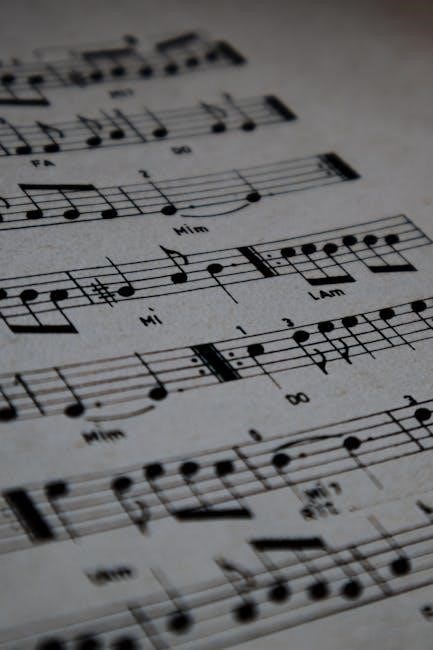
Mastering complex scores requires skillful handling of multi-page layouts, embedded lyrics, and optimizing scan resolution for superior conversion accuracy and detail.
Converting Multi-Page Scores
Successfully converting multi-page PDF sheet music to MIDI demands a systematic approach. Most dedicated software, like SmartScore X2, handles this seamlessly by automatically recognizing page breaks and stitching the musical information together. However, careful review is crucial. Ensure proper page order is maintained during import, and verify that transitions between pages don’t introduce errors – particularly regarding measures spanning across page boundaries.
Pay attention to consistent formatting throughout the score; variations can confuse the software. Some programs allow batch processing for faster conversion of lengthy scores. Always export each page individually first to check for errors before combining them into a single MIDI file. This proactive step minimizes extensive editing later.
Working with Scores Containing Lyrics
Converting PDF sheet music with lyrics presents unique challenges. Optical Music Recognition (OMR) software typically prioritizes musical notation, often treating lyrics as visual clutter. Consequently, lyrics are rarely, if ever, accurately converted into a usable format within the MIDI file itself. Expect to manually re-enter lyrics into your Digital Audio Workstation (DAW) or notation software after the MIDI conversion is complete.
Some advanced software might recognize lyrics as text, but its placement and synchronization with the music will likely be incorrect. Focus on achieving a clean musical transcription first, accepting that lyrical content requires separate, manual input for accurate representation.
Improving Accuracy with High-Resolution Scans
The quality of your source PDF significantly impacts conversion accuracy. High-resolution scans – ideally 300 DPI or higher – provide OMR software with more detailed information, leading to fewer errors in note and symbol recognition. Blurry, low-resolution images force the software to ‘guess’ at shapes, increasing the likelihood of misinterpretations.
Ensure scans are straight and well-lit, avoiding shadows or distortions. Clean up any blemishes or extraneous marks before conversion. Investing time in preparing a pristine scan upfront will save considerable effort correcting errors later in the process, ultimately yielding a more accurate MIDI file.

The Future of PDF to MIDI Conversion
Emerging AI and machine learning technologies promise increasingly accurate and efficient PDF to MIDI conversion, revolutionizing music transcription workflows.
AI and Machine Learning in OMR
Artificial intelligence and machine learning are rapidly transforming Optical Music Recognition (OMR) technology. Traditional OMR systems relied on rigid algorithms, struggling with variations in print quality, handwritten notation, and complex layouts. Modern AI-powered OMR utilizes deep learning models, trained on vast datasets of sheet music, to identify musical symbols with significantly improved accuracy.
These neural networks can learn to recognize patterns and contextual clues, effectively handling imperfections and ambiguities. This leads to fewer errors in note recognition, rhythm interpretation, and overall score reconstruction. Furthermore, AI enables the development of systems capable of understanding musical context, such as identifying key signatures and time signatures automatically, streamlining the conversion process and reducing manual correction efforts.
Potential for Real-Time Conversion
The ultimate goal for PDF to MIDI conversion is achieving real-time processing. Imagine pointing a smartphone camera at sheet music and instantly hearing it played back as MIDI! While currently challenging, advancements in processing power and AI are bringing this closer to reality. Real-time conversion requires incredibly efficient algorithms and robust error correction to handle the complexities of live input.
This capability would revolutionize music education, allowing students to instantly hear their playing, and facilitate live performance applications, where sheet music can be dynamically transposed or adapted. Such a system would need to overcome hurdles like varying lighting conditions and camera angles, but the potential benefits are enormous, promising a seamless bridge between traditional notation and digital music creation.
Integration with Digital Audio Workstations (DAWs)
Seamless integration between converted MIDI files and Digital Audio Workstations (DAWs) is crucial for maximizing workflow efficiency. Most DAWs readily accept MIDI input, allowing users to manipulate notes, add virtual instruments, and apply effects. This opens up a world of possibilities for arrangement, orchestration, and production.
Converted MIDI data can serve as a starting point for composing, enabling rapid prototyping and experimentation. Users can easily edit rhythms, harmonies, and melodies within their preferred DAW environment. Furthermore, MIDI allows for precise control over every aspect of the music, from dynamics to articulation, fostering a highly customizable and creative process.

Legal and Ethical Considerations
Respecting copyright is paramount; converting copyrighted sheet music without permission may infringe legal rights, demanding careful consideration of fair use guidelines.
Copyright and Fair Use
Understanding copyright law is crucial when converting PDF sheet music to MIDI. Generally, sheet music is protected by copyright, belonging to the composer, arranger, or publisher. Converting a copyrighted piece for commercial use—such as selling arrangements or creating derivative works—without obtaining proper licenses is illegal.
However, “fair use” exceptions may apply. These typically include converting music for personal study, academic research, or creating a parody. The specifics of fair use are complex and depend on factors like the purpose and character of the use, the nature of the copyrighted work, the amount used, and the effect on the market for the original.
Always err on the side of caution and seek permission if you intend to use the converted MIDI file beyond personal, non-commercial purposes. Public domain works are free to use without restriction.
Accuracy and Authenticity of Converted Music
PDF to MIDI conversion isn’t always perfect; accuracy varies significantly based on scan quality, musical complexity, and the software used. Expect errors – incorrect notes, rhythms, or missing dynamics – requiring manual correction. The resulting MIDI file is an interpretation of the original, not a flawless replica.
Authenticity is also a concern. Subtle nuances in the original score, like expressive markings or articulation, may be lost during conversion. A MIDI file, even accurately transcribed, can’t fully capture the artistic intent of the composer or performer.
Therefore, treat converted MIDI files as a starting point for further refinement, always comparing the output to the original sheet music to ensure musical integrity.
Resources and Further Learning
Explore software downloads, helpful online tutorials, and vibrant forums to deepen your understanding of PDF to MIDI conversion techniques and tools.
Links to Software Downloads
Accessing the right tools is crucial for successful PDF to MIDI conversion. Here are some direct links to download the software discussed throughout this guide.
- SmartScore X2: https://www.smartscore.com/ – Offers a free trial and various purchase options.
- PhotoScore & Noteflight: https://www.neuratron.com/products/photoscore/ & https://www.noteflight.com/ – Explore individual purchase or subscription models.
- MuseScore: https://musescore.org/ – A free, open-source notation software with a scan plugin available.
- Scan Plugin for MuseScore: https://github.com/musescore/scan – Requires some technical setup.
Remember to check each website for the latest version and system requirements.
Online Tutorials and Forums
Enhance your learning and troubleshoot issues with these valuable online resources. Numerous tutorials demonstrate PDF to MIDI conversion techniques using various software options.
- YouTube: Search for “SmartScore X2 tutorial,” “MuseScore scan plugin,” or “PDF to MIDI conversion” for video guides.
- SmartScore Forum: https://www.smartscore.com/forum/ – Dedicated support and user discussions.
- MuseScore Forum: https://musescore.com/groups – A vibrant community for MuseScore users.
- Noteflight Learn: https://www.noteflight.com/learn/ – Official tutorials for Noteflight features.
These platforms offer solutions to common problems and insights from experienced users.
Recommended Soundfont Libraries
Elevate your MIDI playback quality with high-quality soundfont libraries. These collections contain sampled instrument sounds, significantly improving realism.
- GeneralUserGS v2: A widely used, free soundfont offering a broad range of instruments.
- SGM-V2.01: Another popular free option, known for its compatibility and decent sound quality.
- LABS (Spitfire Audio): Offers a selection of free, beautifully sampled instruments.
- EastWest Quantum Leap SoundFont Collection: A professional, paid option with exceptional sound quality;
Experiment with different libraries to find the sounds that best suit your musical style and project needs.